






 تكلم مع الذكاء الاصطناعي


Computers in the Medical Office 6th Edition by Susan Sanderson
النسخة 6الرقم المعياري الدولي: 978-0073401997Computers in the Medical Office 6th Edition by Susan Sanderson
النسخة 6الرقم المعياري الدولي: 978-0073401997 تمرين 29
Practice entering information and correcting errors.
1. Click the Activities menu.
2. Click Enter Transactions.
3. Click the triangle button in the Chart box. The Chart drop-down list is opened (see Figure 3-19).
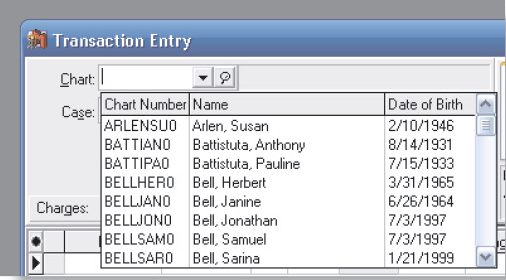
Figure 3-19 Transaction Entry Chart drop-down list
4. To select James Smith, key the first two letters of his chart number (SMITHJAØ): SM. Notice that when "SM" is keyed, the system goes to the entry for the first patient whose chart number begins with SM , in this case James Smith.
5. Press the Tab key.
6. To edit a transaction, click in the field that needs to be changed. Click in the Procedure field. Notice that the entry in the field becomes highlighted.
7. Click again in the Procedure field. A pop-up list of procedure codes is displayed.
8. Select a new code from the list by clicking on it. Scroll down the pop-up list of codes, and click 99396. Notice that the new code is displayed in the Procedure field, but the entry in the Amount field has not changed. This does not happen until the Tab key is pressed. Press the Tab key now, and watch the entry in the Amount field change.
9. Press the Tab key repeatedly, and watch as the cursor moves from box to box.
10. Exit the Transaction Entry dialog box by clicking the Close button or by clicking the close icon in the upper-right corner of the dialog box. An Information box is displayed, asking whether the changes should be saved (see Figure 3-20). In this case, click the No button. The changes are not saved, and the Transaction Entry window closes.
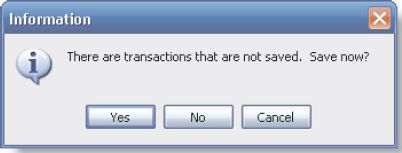
Figure 3-20 Transaction Entry save warning dialog box
1. Click the Activities menu.
2. Click Enter Transactions.
3. Click the triangle button in the Chart box. The Chart drop-down list is opened (see Figure 3-19).
Figure 3-19 Transaction Entry Chart drop-down list
4. To select James Smith, key the first two letters of his chart number (SMITHJAØ): SM. Notice that when "SM" is keyed, the system goes to the entry for the first patient whose chart number begins with SM , in this case James Smith.
5. Press the Tab key.
6. To edit a transaction, click in the field that needs to be changed. Click in the Procedure field. Notice that the entry in the field becomes highlighted.
7. Click again in the Procedure field. A pop-up list of procedure codes is displayed.
8. Select a new code from the list by clicking on it. Scroll down the pop-up list of codes, and click 99396. Notice that the new code is displayed in the Procedure field, but the entry in the Amount field has not changed. This does not happen until the Tab key is pressed. Press the Tab key now, and watch the entry in the Amount field change.
9. Press the Tab key repeatedly, and watch as the cursor moves from box to box.
10. Exit the Transaction Entry dialog box by clicking the Close button or by clicking the close icon in the upper-right corner of the dialog box. An Information box is displayed, asking whether the changes should be saved (see Figure 3-20). In this case, click the No button. The changes are not saved, and the Transaction Entry window closes.
Figure 3-20 Transaction Entry save warning dialog box
التوضيح


هذا السؤال ليس له إجابة موثقة من أحد الخبراء بعد، دع الذكاء الاصطناعي Copilot في كويز بلس يساعدك في إيجاد الحل.

Computers in the Medical Office 6th Edition by Susan Sanderson

لماذا لم يعجبك هذا التمرين؟
أخرى 8 أحرف كحد أدنى و 255 حرفاً كحد أقصى
حرف 255