






 Chat with AI


Computers in the Medical Office 6th Edition by Susan Sanderson
Edition 6ISBN: 978-0073401997Computers in the Medical Office 6th Edition by Susan Sanderson
Edition 6ISBN: 978-0073401997 Exercise 7
The medical office has just received an ERA from Blue Cross and Blue Shield (see Source Document 10). The total amount of the remittance is $214.40. This amount includes payments for a number of patients. Enter the insurance carrier payment for each patient. You will need to enter a zero payment on a charge for Sheila Giles, as one of her procedures was denied.
Date: November 4, 2010
1. In the Deposit List dialog box, change the date in the Deposit Date box to 11/4/2010, and press the Tab key. A Confirm box is displayed, stating that the date entered is in the future, and asking if you want to change it. Click the No button to keep the new date.
2. Click the New button in the Deposit List dialog box.
3. Select Insurance in the Payor Type box. Press Tab.
4. Change the entry in the Payment Method box to Electronic, since this payment was sent electronically to the practice's bank account.
5. Enter the ERA number, 001234, in the Description/Bank No. box.
6. Enter 214.40 in the Payment Amount box. Press Tab.
7. Accept the default entry in the Deposit Code box. Press Tab.
8. Select 4-Blue Cross/Blue Shield in the Insurance box. Medisoft automatically completes the Payment, Adjustment, Withhold, Deductible, and Take Back Code boxes.
9. Click the Save button.
10. The payment entry appears in the Deposit List dialog box.
11. Now apply the payment to the specific transaction charges.
12. With the Blue Cross/Blue Shield line highlighted, click the Apply button. The Apply Payment/Adjustments to Charges dialog box is displayed.
13. Key GI in the For box to select Sheila Giles, and then press Tab.
14. Three charges are listed. Locate the charge for procedure code 99213 on 10/29/2010. Key the amount of the payment, 57.60, in the Payment box, and press Tab. Medisoft automatically checks the Complete box, since Giles has only one insurance carrier (no payment is forthcoming from any other carrier, so the charge is complete). Continue pressing the Tab key until the amount listed in the Remainder column changes to $14.40.
15. Now enter the payment for the next procedure listed on the ERA-71010. ( Note: The order of procedures is different on the ERA than it is in the Apply Payment/Adjustment to Charges window. Be sure to apply the payment to the correct procedure.) Remember to click the Tab key until the amount in the Remainder column changes.
16. Look again at Source Document 10. Notice that the amount paid for the final procedure, 87430, is $0.00. Read the note listed to determine why the charge was not paid. This denial of payment must be entered in Medisoft so practice billing staff members will be aware that Giles is responsible for the entire amount of that charge, $29.00.
17. Click in the Payment box for the charge for procedure 87430. Enter 0, and press Tab. Notice that the amount listed in the Remainder column is the full amount of the charge, $29.00. The charge has also been marked as complete, since the insurance carrier is not responsible for the remainder amount.
18. Click the Save Payments/Adjustments button. An Information box is displayed, indicating that the claim has been marked done for the primary insurance. Click the OK button.
19. This time, to verify the payment in the Transaction Entry dialog box without exiting the Apply Payment/Adjustment to Charges dialog box, click the View Transactions button.
20. The Transaction Entry dialog box appears. Locate Sheila Giles's upper respiratory infection case. In the Charges area, notice that two of the charges appear in an aqua color, which indicates that they have been partially paid. The charge that was denied by the insurance carrier-87430-is still in gray, indicating that no payment has been made.
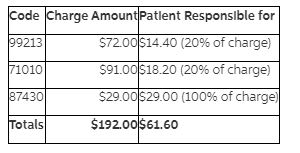
21. Now look at the Account Total in the Totals tab area in the Transaction Entry dialog box. Sheila Giles is listed as being responsible for paying $61.60, which breaks down as follows:
22. Close the Transaction Entry dialog box.
23. You are returned directly to the Apply Payments/Adjustments to Charges dialog box with the rest of the Blue Cross/Blue Shield payment still displayed. Enter the payments for the next patient listed on Source Document 10, Jill Simmons.
24. Key S in the For box, and press Tab to select Jill Simmons.
25. Enter the payment of 43.20 in the Payment box for the 99212 charge on 10/29/2010. Tab to the end of the row.
26. Enter the other payment for Jill Simmons. Notice that the amount listed in the Unapplied area is now 0.00, indicating that the entire payment has been entered.
27. Click the Save Payments/Adjustments button.
28. Close the Apply Payment/Adjustments to Charges dialog box.
29. The Deposit List dialog box reappears, with the Blue Cross/Blue Shield deposit listed.
30. Close the Deposit List dialog box.
Date: November 4, 2010
1. In the Deposit List dialog box, change the date in the Deposit Date box to 11/4/2010, and press the Tab key. A Confirm box is displayed, stating that the date entered is in the future, and asking if you want to change it. Click the No button to keep the new date.
2. Click the New button in the Deposit List dialog box.
3. Select Insurance in the Payor Type box. Press Tab.
4. Change the entry in the Payment Method box to Electronic, since this payment was sent electronically to the practice's bank account.
5. Enter the ERA number, 001234, in the Description/Bank No. box.
6. Enter 214.40 in the Payment Amount box. Press Tab.
7. Accept the default entry in the Deposit Code box. Press Tab.
8. Select 4-Blue Cross/Blue Shield in the Insurance box. Medisoft automatically completes the Payment, Adjustment, Withhold, Deductible, and Take Back Code boxes.
9. Click the Save button.
10. The payment entry appears in the Deposit List dialog box.
11. Now apply the payment to the specific transaction charges.
12. With the Blue Cross/Blue Shield line highlighted, click the Apply button. The Apply Payment/Adjustments to Charges dialog box is displayed.
13. Key GI in the For box to select Sheila Giles, and then press Tab.
14. Three charges are listed. Locate the charge for procedure code 99213 on 10/29/2010. Key the amount of the payment, 57.60, in the Payment box, and press Tab. Medisoft automatically checks the Complete box, since Giles has only one insurance carrier (no payment is forthcoming from any other carrier, so the charge is complete). Continue pressing the Tab key until the amount listed in the Remainder column changes to $14.40.
15. Now enter the payment for the next procedure listed on the ERA-71010. ( Note: The order of procedures is different on the ERA than it is in the Apply Payment/Adjustment to Charges window. Be sure to apply the payment to the correct procedure.) Remember to click the Tab key until the amount in the Remainder column changes.
16. Look again at Source Document 10. Notice that the amount paid for the final procedure, 87430, is $0.00. Read the note listed to determine why the charge was not paid. This denial of payment must be entered in Medisoft so practice billing staff members will be aware that Giles is responsible for the entire amount of that charge, $29.00.
17. Click in the Payment box for the charge for procedure 87430. Enter 0, and press Tab. Notice that the amount listed in the Remainder column is the full amount of the charge, $29.00. The charge has also been marked as complete, since the insurance carrier is not responsible for the remainder amount.
18. Click the Save Payments/Adjustments button. An Information box is displayed, indicating that the claim has been marked done for the primary insurance. Click the OK button.
19. This time, to verify the payment in the Transaction Entry dialog box without exiting the Apply Payment/Adjustment to Charges dialog box, click the View Transactions button.
20. The Transaction Entry dialog box appears. Locate Sheila Giles's upper respiratory infection case. In the Charges area, notice that two of the charges appear in an aqua color, which indicates that they have been partially paid. The charge that was denied by the insurance carrier-87430-is still in gray, indicating that no payment has been made.
21. Now look at the Account Total in the Totals tab area in the Transaction Entry dialog box. Sheila Giles is listed as being responsible for paying $61.60, which breaks down as follows:
22. Close the Transaction Entry dialog box.
23. You are returned directly to the Apply Payments/Adjustments to Charges dialog box with the rest of the Blue Cross/Blue Shield payment still displayed. Enter the payments for the next patient listed on Source Document 10, Jill Simmons.
24. Key S in the For box, and press Tab to select Jill Simmons.
25. Enter the payment of 43.20 in the Payment box for the 99212 charge on 10/29/2010. Tab to the end of the row.
26. Enter the other payment for Jill Simmons. Notice that the amount listed in the Unapplied area is now 0.00, indicating that the entire payment has been entered.
27. Click the Save Payments/Adjustments button.
28. Close the Apply Payment/Adjustments to Charges dialog box.
29. The Deposit List dialog box reappears, with the Blue Cross/Blue Shield deposit listed.
30. Close the Deposit List dialog box.
Explanation Verified
Verified
a Blue Cross/Blue Shield ...

Computers in the Medical Office 6th Edition by Susan Sanderson

Why don’t you like this exercise?
Other Minimum 8 character and maximum 255 character
Character 255